

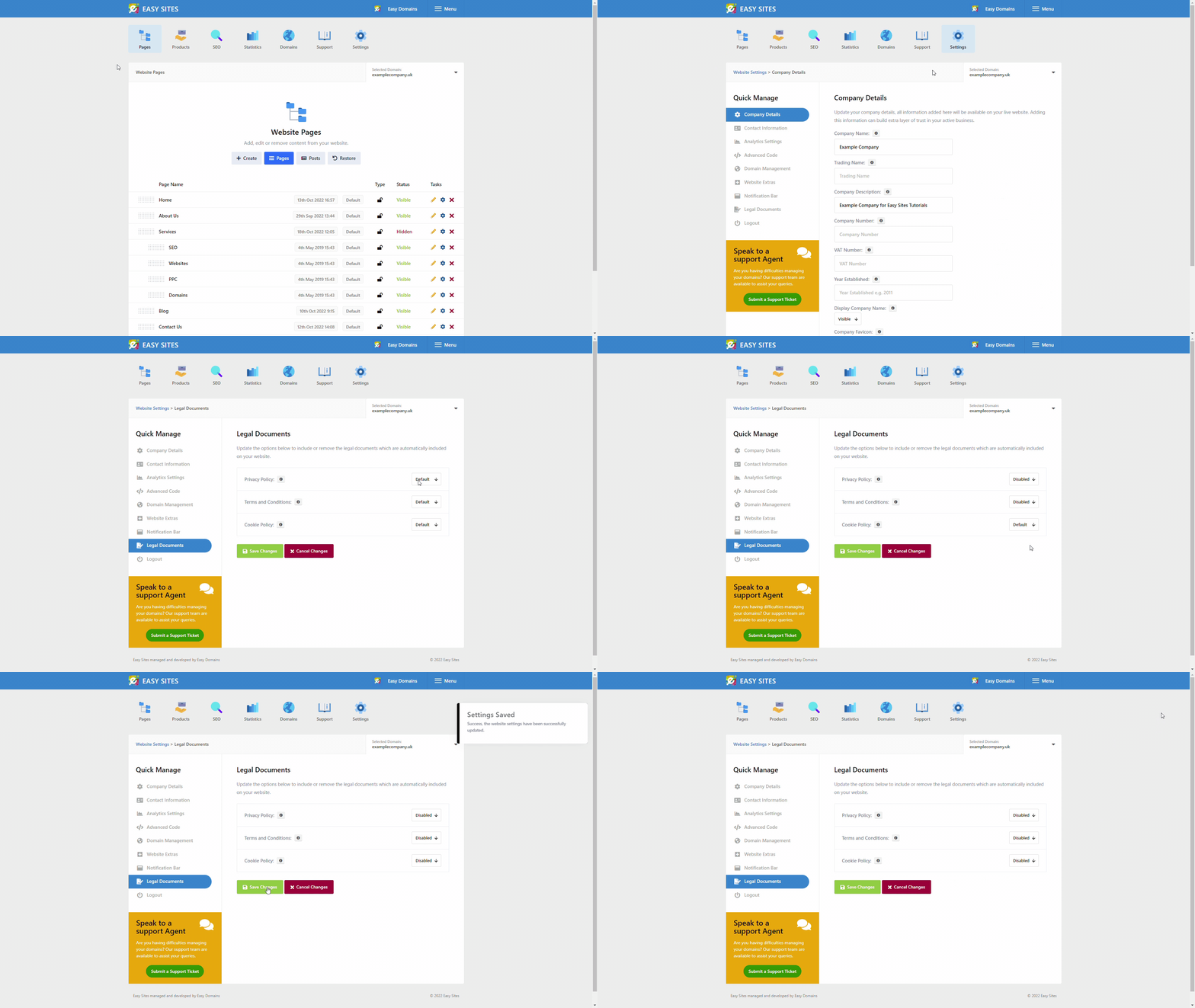
This guide will walk you through how to remove the default documents on your Easy Sites website.
Why Do I Need To Know This?
As of the week commencing 14th May 2018, default legal documents such as the Terms and Conditions, Privacy Policy and the Cookie Policy are added to all of our customers' websites as part of a legal update from our company.
The documents have been carefully reviewed, however, if you wish to replace them with your own policies bespoke to your company, you can disable the default documents and add your own.
Logging In
Navigating to the Legal Documents Section
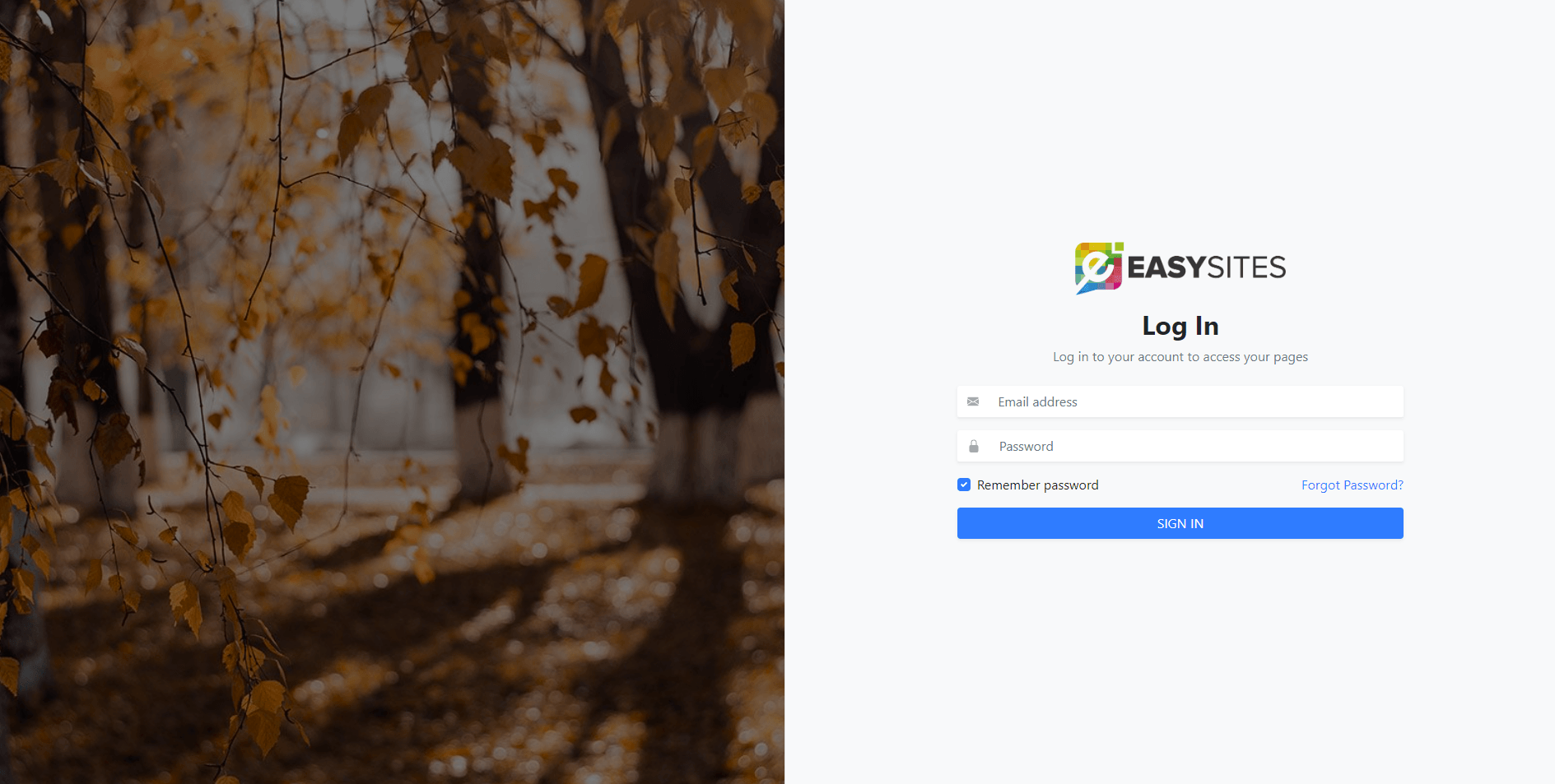
You can log into your Easy Sites account by navigating to (easysites.uk) and clicking the "Login to your account" button. A pop-up box will then appear asking for your email address and password. These can be found in previous correspondence with us.
If you don't have this information at hand, please use the Forgot Password tutorial or simply get in touch with us.
Domain Menu
Once logged in, click "edit site" on the website of your choice.

Website Settings
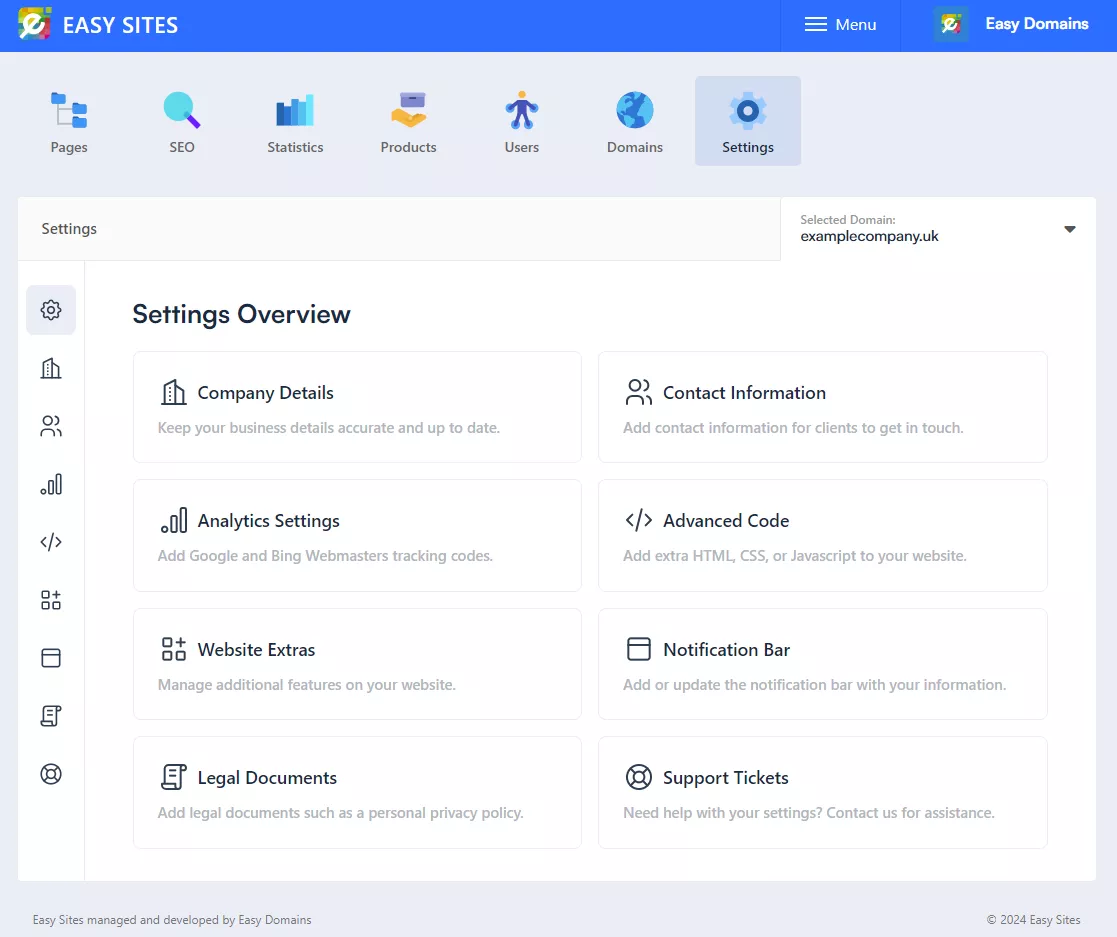
From this point, please navigate to the "Settings", as represented by the cog icon. From this screen, you can see "Legal Documents" from the main dashboard or on the menu to the left of the screen.
Disabling Documents
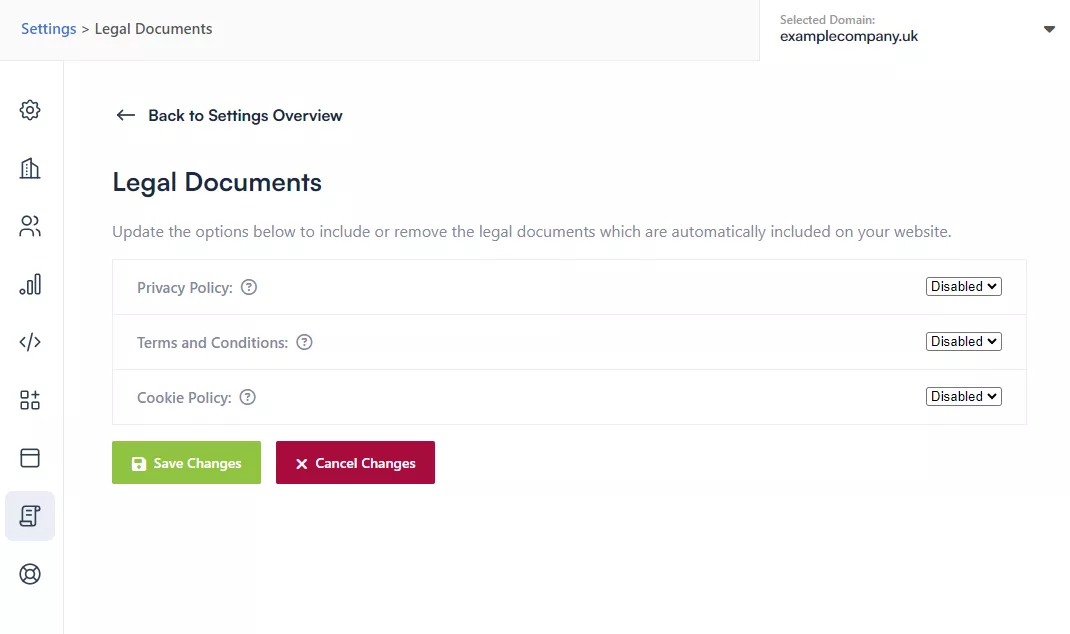
If you select "Legal Documents", you can then choose "Disabled" from the drop-down next to each default policy you want to remove. Please don't forget to click "Save Changes" at the bottom of the screen for the changes to take effect.
If you would like to add your own Terms and Conditions, Privacy Policy or Cookie Policy, please see our follow up guide here.
Need Help?
If you have any questions or would like more information regarding this guide or using Easy Sites, please simply get in touch here.